Although Business Suite has been in circulation since September 2020, the chances are that you don’t yet understand how to find your way around the management tool. Talking about time, do you even have any left to manage your social media accounts?
You are probably stuck in meetings and idea generation pods. So, how will you sustain your brand awareness on Facebook and Instagram? Can you commit to regularly posting keyword-optimized content? Most importantly, how soon can you reply to messages and comments from prospects and customers?
Be frank with yourself; you need help!
You need digital management experts like J.Louis Technology to help you manage, grow, and monetize your social media profiles. But before the “growth” can happen, your desired expert needs full access to your business profiles. Hence, the reason why you must learn how to add users to your Business Suite.
Adding Users To Your Business Suite In 5 Simple Steps
Check Your Eligibility
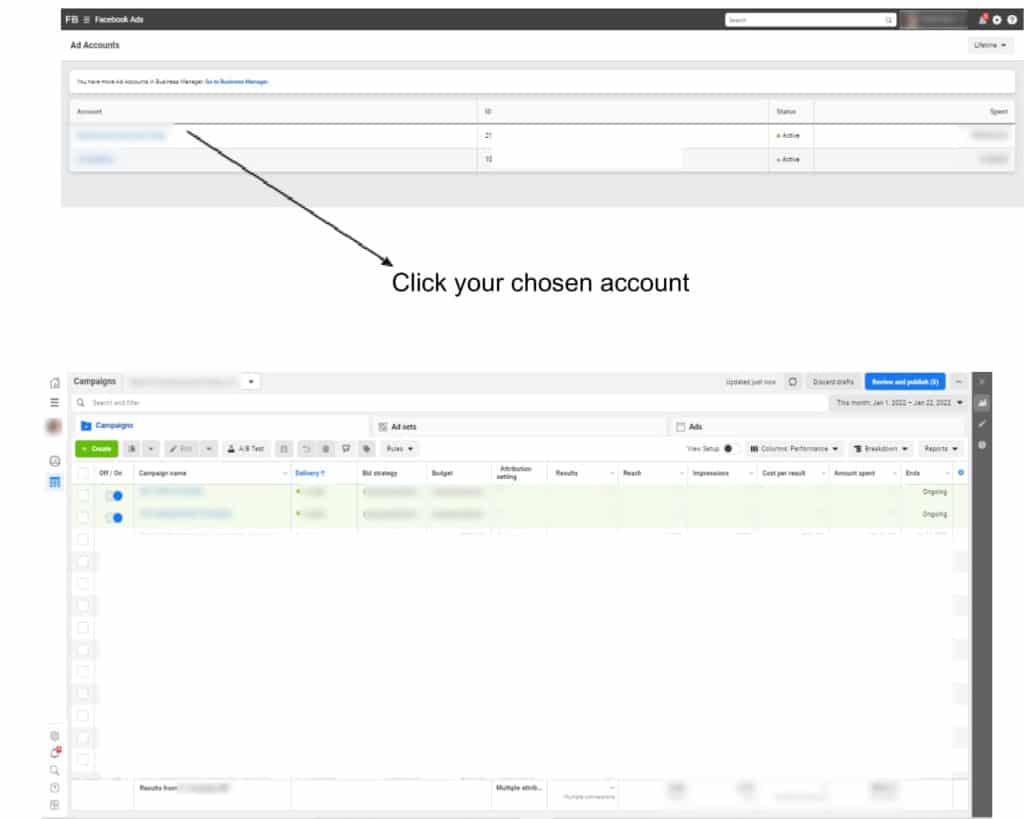
As much as you want to delve straight into adding users to your Business Suite, you need to check if you can use the management tool to start. But if you already use Business Manager or Pages Manager, you can move to the next step.
Nevertheless, don’t take chances. More so, you only need a few minutes to check the eligibility. And here is how to do so:
- Log in your to Facebook business account
- Then, visit https://business.facebook.com/
- If you’re eligible to use Business Suite, your browser will automatically redirect to the tool’s homepage.
Visit Your Business Settings
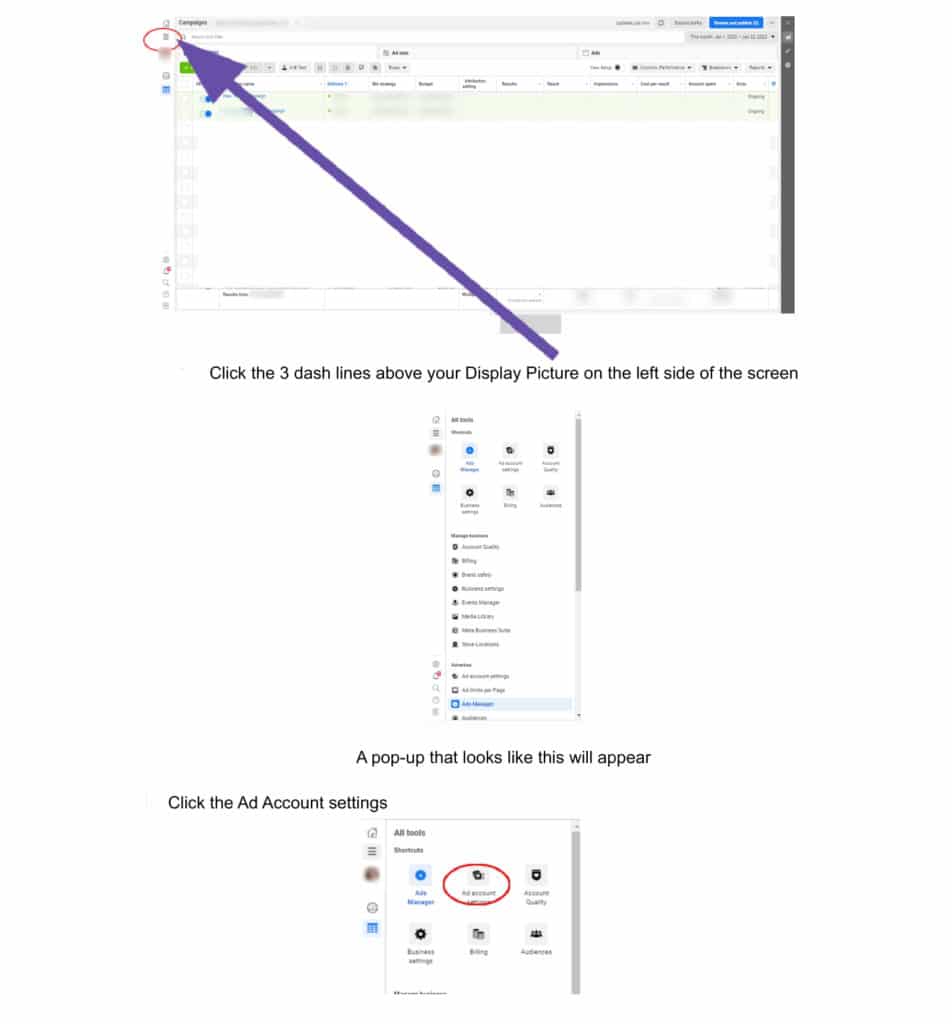
By now, you should already be on your Business Suite page. Next, check the homepage options and scroll to “business settings.”
Under the settings, you'll see options such as People, Partners, and System Users. However, the tags mean different things. Let's explain!
- People is the tag to use if you want to add your employees or individuals to manage your social media profile. This option is what you should use for management experts.
- “Partners” is the tag for your business associates. This option is what you need to share access to your assets with your shareholders and business partners.
- System Users do not mean your engineers – we understand that the phrase can be confusing. Use the option only to add servers and software to your business profile. And before you can even add a system user, you must own a Facebook app.
For the purpose of this article, stick to the “People” option.
Click On People
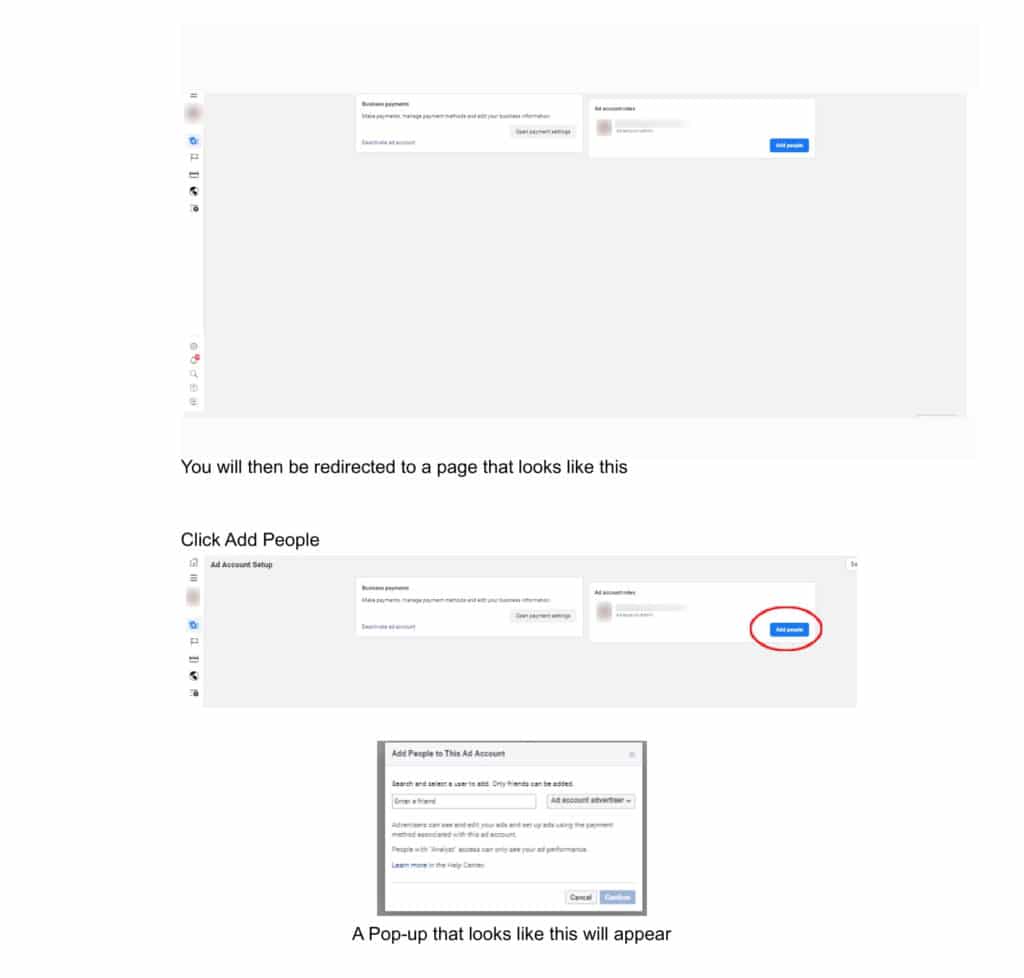
After clicking on the “People” option, you’d see “add,” select that and input the email address of the individual you’d like to add to your Business Suite.
Afterward, the system will ask you to assign roles to the individual you added. Now, there are two roles you can choose from:
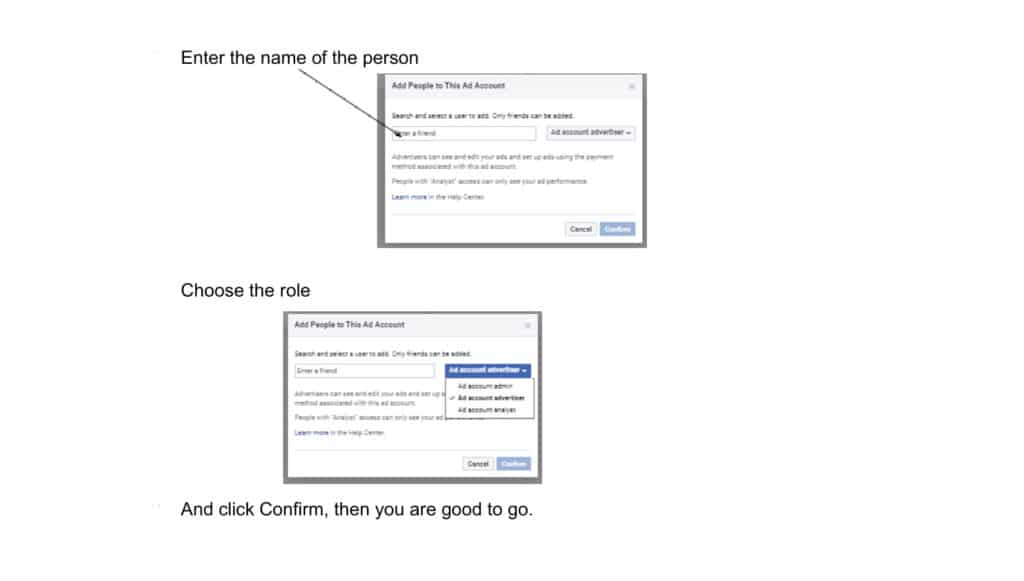
- Employee: select this option if you want the added user to have restricted roles.
- Admin: is the best option for hands-off social media management. If you select this for a user, they'll have unlimited access to your ads, Facebook profile, messenger, and Instagram. An admin can even add another user.
Note: you can also assign specific roles as "finance analyst" or "finance editor" to a user. But you'll only find such an option under the advanced menu.
Assign Tasks
If you have assigned an admin role to a user, skip this part. However, if you only authorized an "employee" pass, you need to define the limits.
What tasks can the user do? Can they manage your ads, messages, and comments? Or would the user only be restricted to posting on your profiles?
Whichever option you use, know that you can always toggle it later.
Finalize The Process
After assigning tasks to your user, click on the invite button. The "user" will receive an email notification and join your Business Suite. And as soon as they accept the invitation, you can take your hands-off your social media profile and focus on what you do best.
Extra note: enable two-factor security authentication on your Business Suite. Doing so will prevent issues of corporate theft and keep old employees from accessing our company profile.
Knowing how to add users to your Business Suite is only the first step. You still need to carefully choose who to add and the factors to consider. In that case, the following tips can help you.
Why Should You Add A User To Your Business Suite? Choosing The Right Match
Whether you use Business Suite or SEO tools, if you don't understand the basics of digital marketing, it won't matter. And mind you, you can have the best product, and no one will care still. In other words, building and sustaining sales is not just about you and your services.
What will eventually set your business up for growth and increased revenue is understanding what moves people. Why do people buy?
Without that knowledge, your Business Suite won’t do much. So, should you enroll in a marketing course?
No! Engage a digital marketing expert who understands how to use Business Suite. With such a professional, your tools will be put to good use. But how can you choose the right match?
Suggested reading: 9 Marketing Ideas To Grow Your Online Business
Experience
The first factor to consider when choosing the right management expert for your Business Suite is the experience of your preferred choice. How long have they been using social media for business? How many businesses have they helped over the years?
How did your preferred choice handle the transitioning from Business Manager to Business Suite? Can they cope with future innovations? Most importantly, have they ever managed any business in your niche?
Overall, ensure that any management expert you hire is flexible enough to handle different niches and learn how to navigate new technologies.
Vast Knowledge
Understanding human behavior is only one part of social media marketing. There is still the part of graphics, content creation, and analytics.
In essence, you can't settle for a one-section champion. You need a manager who can help with your infographics and your content. If they understand how to analyze big data, manage customers' feedback, and optimize your content for search engines, that's even better.
J. Louis Technology Is Who You Seek!
We cover all the aspects of social media management. We write, optimize, schedule, and publish posts for our clients.
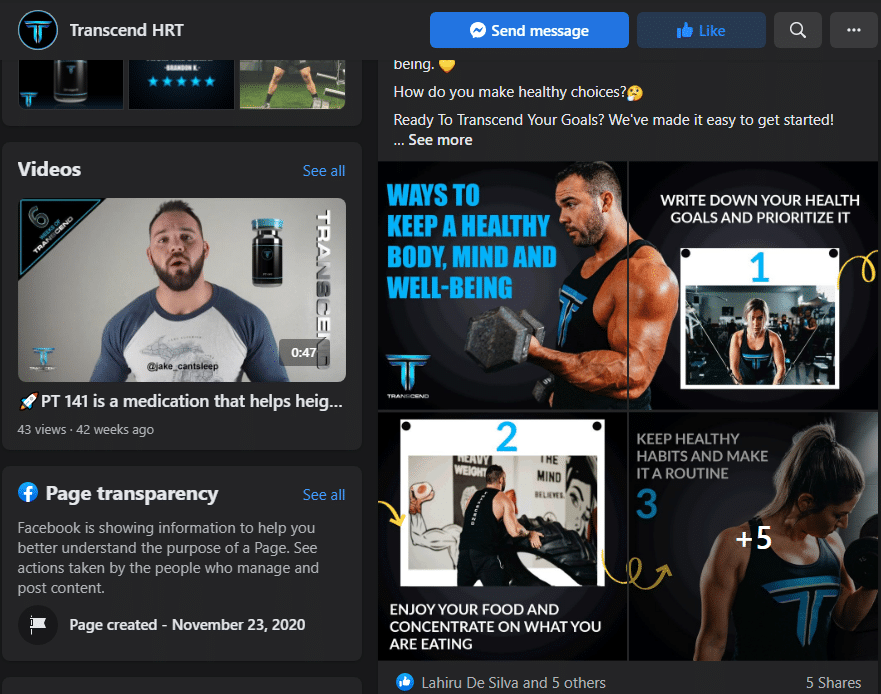
Some of the clients we currently manage include Sound Renovations, Aaron Miller Insurance, Lotus Restaurant, and Transcend Company. Since we took over their business profiles, we have doubled the followership, reactions, and clicks across Facebook and Instagram.
So, rest assured that you’ll get results with us. But if you’re not sure where to start, book a call first!